
Hotel Lobby AI – Turn Two Photos Into a Duo Video
Use the Hotel Lobby AI filter to pair two photos into a vertical orange-booth duet. Keep one subject on the left and one on the right, with a mic in the center, and let them take turns while the camera stays fixed.
Use the Hotel Lobby AI filter to pair two photos into a vertical orange-booth duet. Keep one subject on the left and one on the right, with a mic in the center, and let them take turns while the camera stays fixed.
What is Hotel Lobby AI?
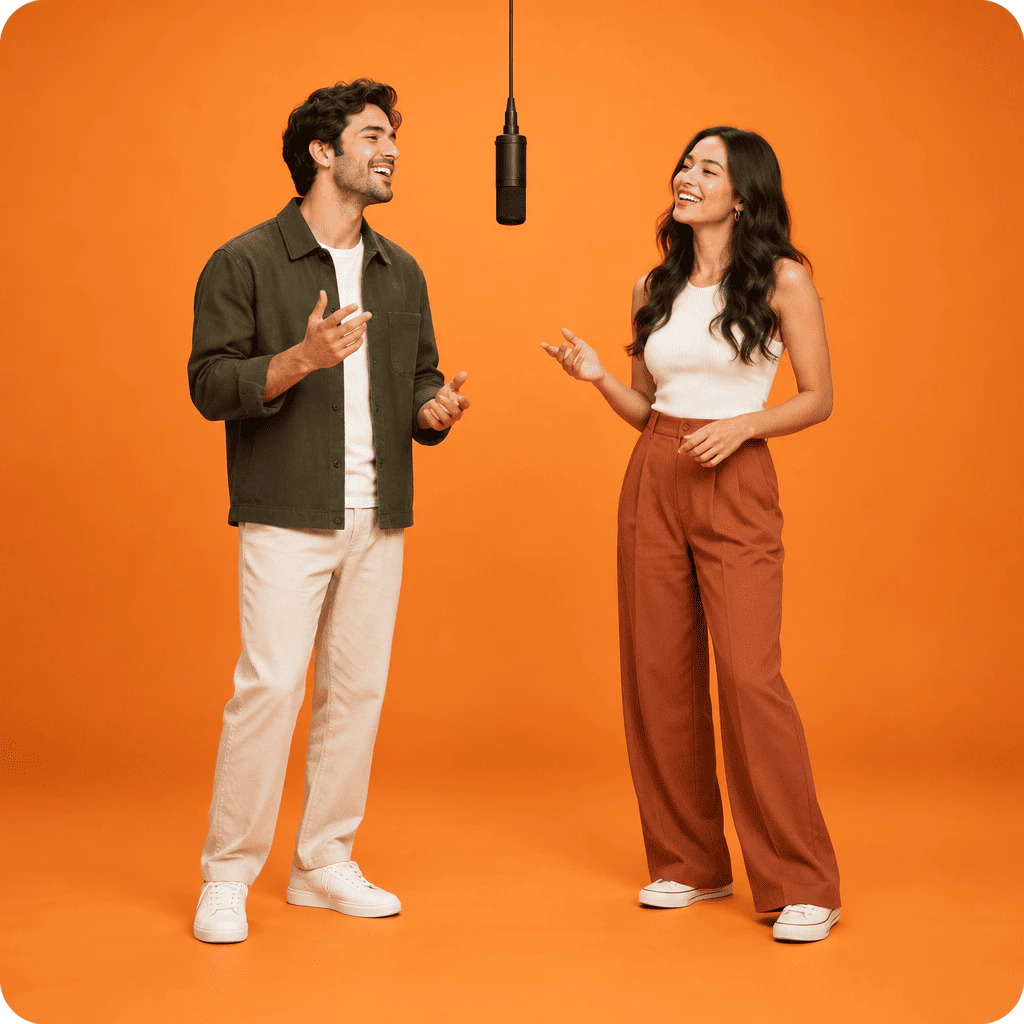
Hotel Lobby AI is a simple way to make the popular orange-booth duo video. You add two photos, place one person on each side of a hanging mic, and get a vertical clip where they take turns performing.
- Two Photos, One True DuoWith Hotel Lobby AI, upload one picture per person—not a group shot. Keep the first subject on the left and the second on the right so faces, hair, and outfits stay separate and clear.
- Quick Setup, Your DetailsDescribe the orange set, center microphone, and who goes first in plain words. Change only the cast or small moves when you need a different vibe.
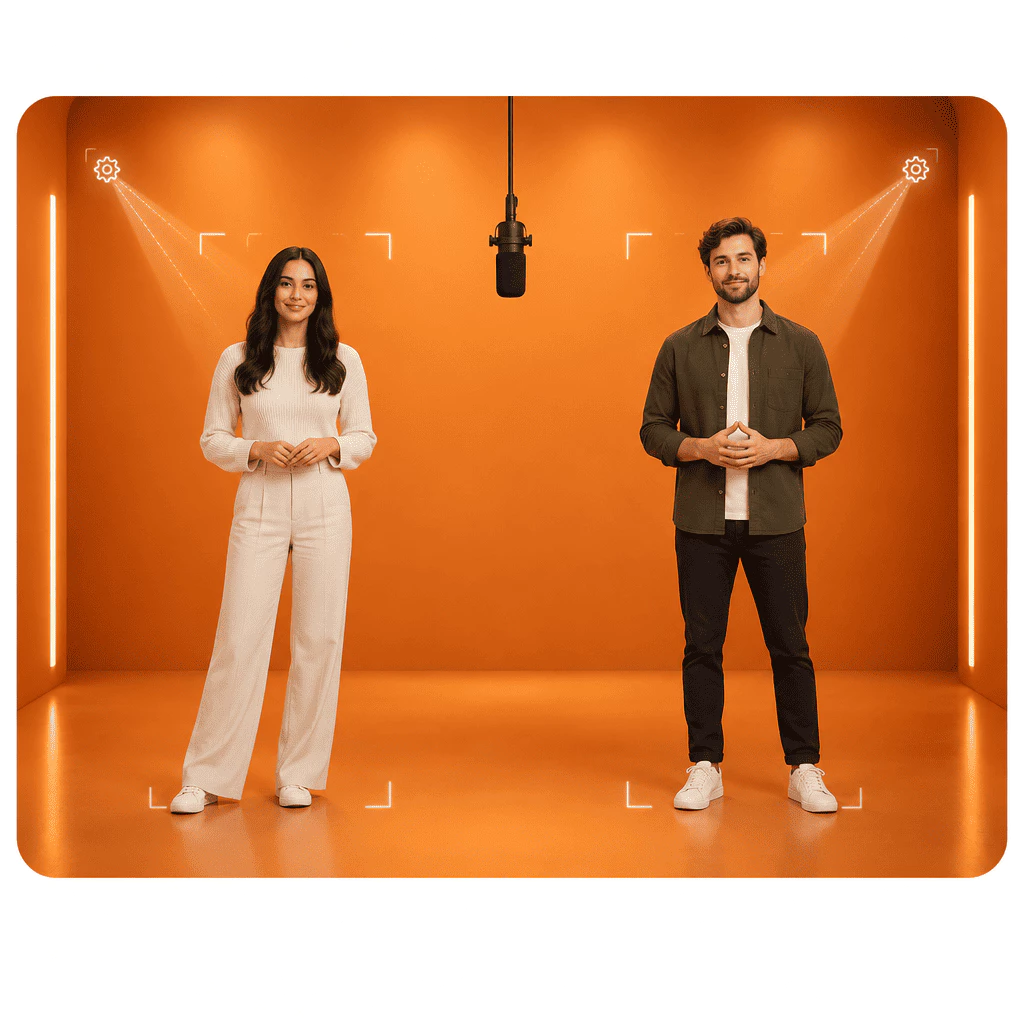
- Steady Camera, Fewer GlitchesAsk for one locked full-body view, soft even light, and visible feet. Skip zooms and cuts at first so side swaps and face drift are easier to catch and fix.
Why Use Hotel Lobby AI for Duo Videos
Three reasons Hotel Lobby AI helps you build the orange-booth clip faster:
Hotel Lobby AI Key Features
What a strong Hotel Lobby AI filter should help you do:
Two Photos for a Real Duo
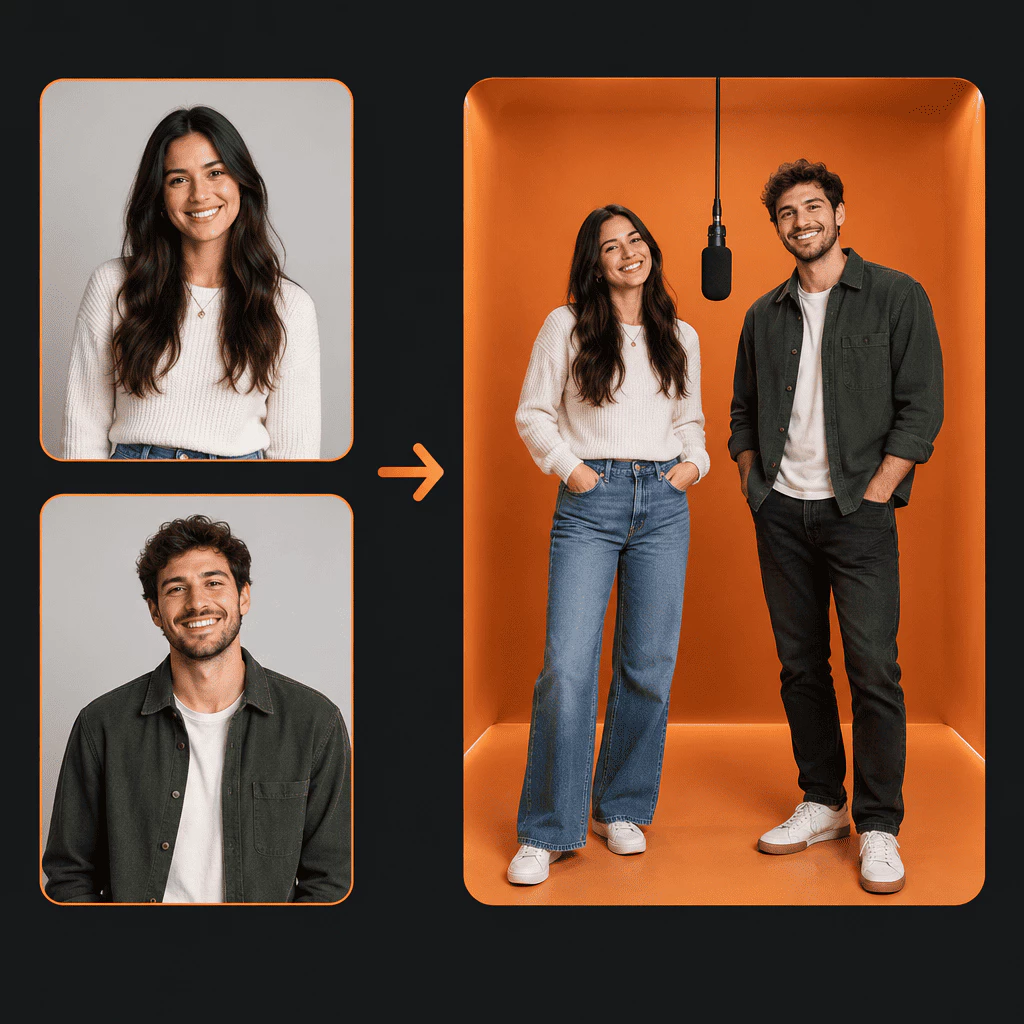
One group picture makes it hard to control who sits on each side. Hotel Lobby AI works best when you upload one photo per person, put the first reference on the left and the second on the right, and pick clear faces with similar light. That helps keep each identity, outfit, and body shape intact from start to finish.
Fast Start, Your Control
You want upload-and-go speed, but still need control. Set the orange booth, hanging mic, who goes first, and a still camera in your instructions. Change only the cast or small motion notes instead of redoing the whole scene each time.
Locked Camera, Steady Clip
The classic look works when the view barely moves. Ask for one centered full-body shot, soft even light, and feet in frame. Hold off on zooms, cuts, and pans until both people look stable—then it is easier to fix face drift or swapped sides.
Start Without Manual Edits
Drop in two references and describe the performance once. The prompt already sets the stage, microphone placement, turn order, and camera rules so you are not cutting faces into old clips by hand.
Friends, Pets, or Siblings
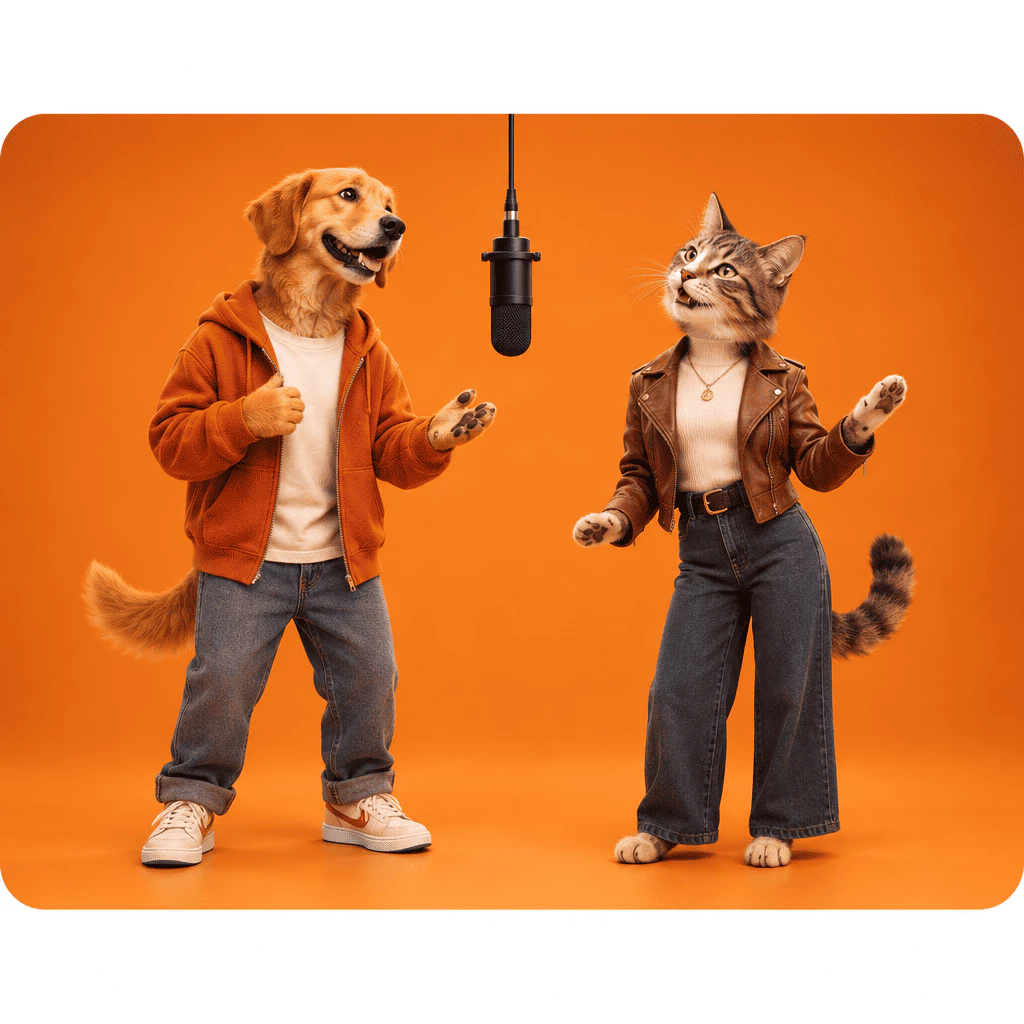
Use the same orange-booth setup with different pairs. Switch to friends, pets, or siblings, keep each subject on their own side, and stagger reactions so the clip feels fresh for your audience.
Check Before You Export
Write clear rules for left-right placement, separate movement, visible feet, and no camera motion. Those checks make common identity and continuity mistakes easier to see and fix before you share the video.
Make Your First Hotel Lobby AI Video
Three simple steps to turn two photos into an orange-booth duo clip with Hotel Lobby AI:
Upload One Photo per Person
Use two clear pictures with open faces and similar lighting. In Hotel Lobby AI, choose who stands on the left and who stands on the right before you generate.
Describe the Scene
Open image-to-video, upload both references, and write how the booth, mic, and turns should look—for friends, pets, or siblings. Keep the camera still for your first try.
Review and Export
Watch the full clip for faces, hands, feet, sides, and turn timing. Change one note at a time, then export when it looks right and you have permission to use the photos.
Ways to Use Hotel Lobby AI
See how people use Hotel Lobby AI to turn two photos into shareable orange-booth duo clips.
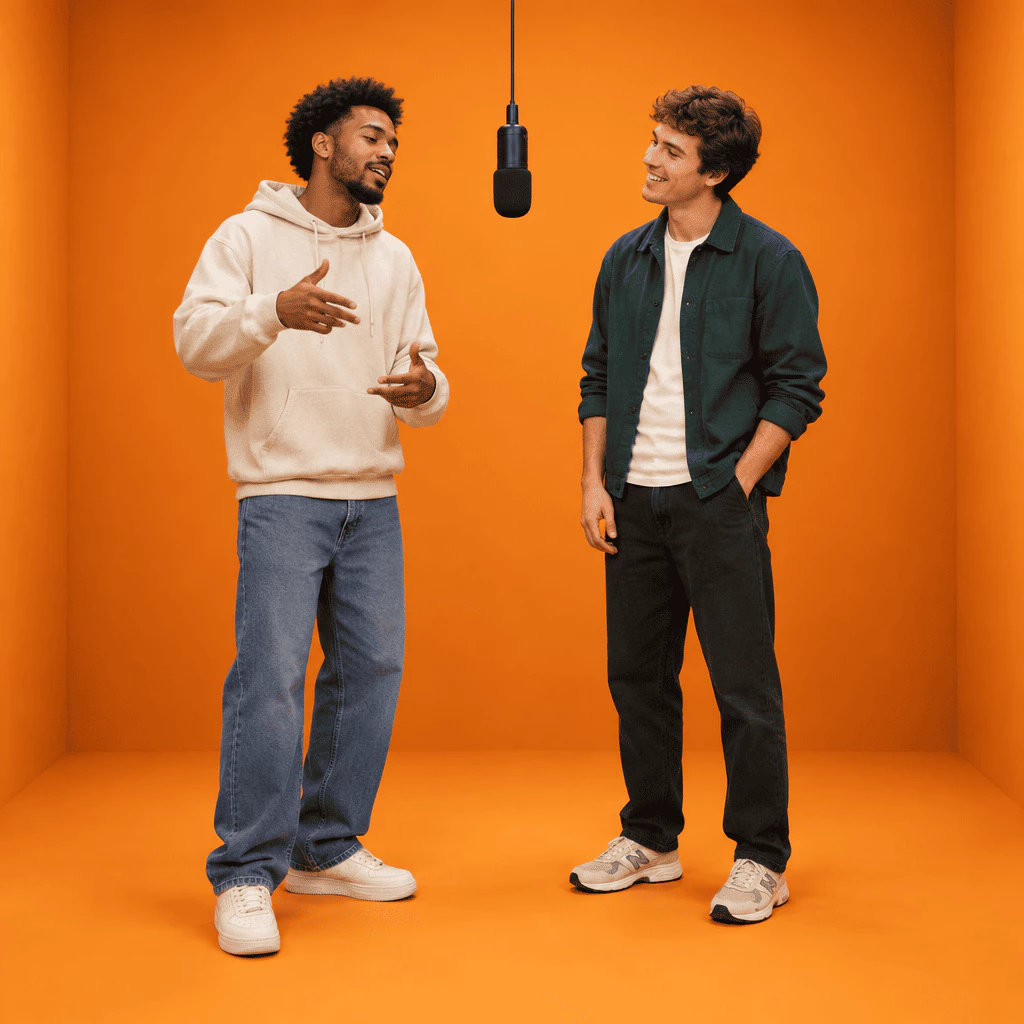
Two Friends, One Mic
“We added two separate portraits and got a tall 9:16 duet—one friend on each side of the hanging mic, taking turns while the camera stayed put.”
- Keep full bodies visible with soft, even light
- Start with a simple scene description, then tweak movement if needed
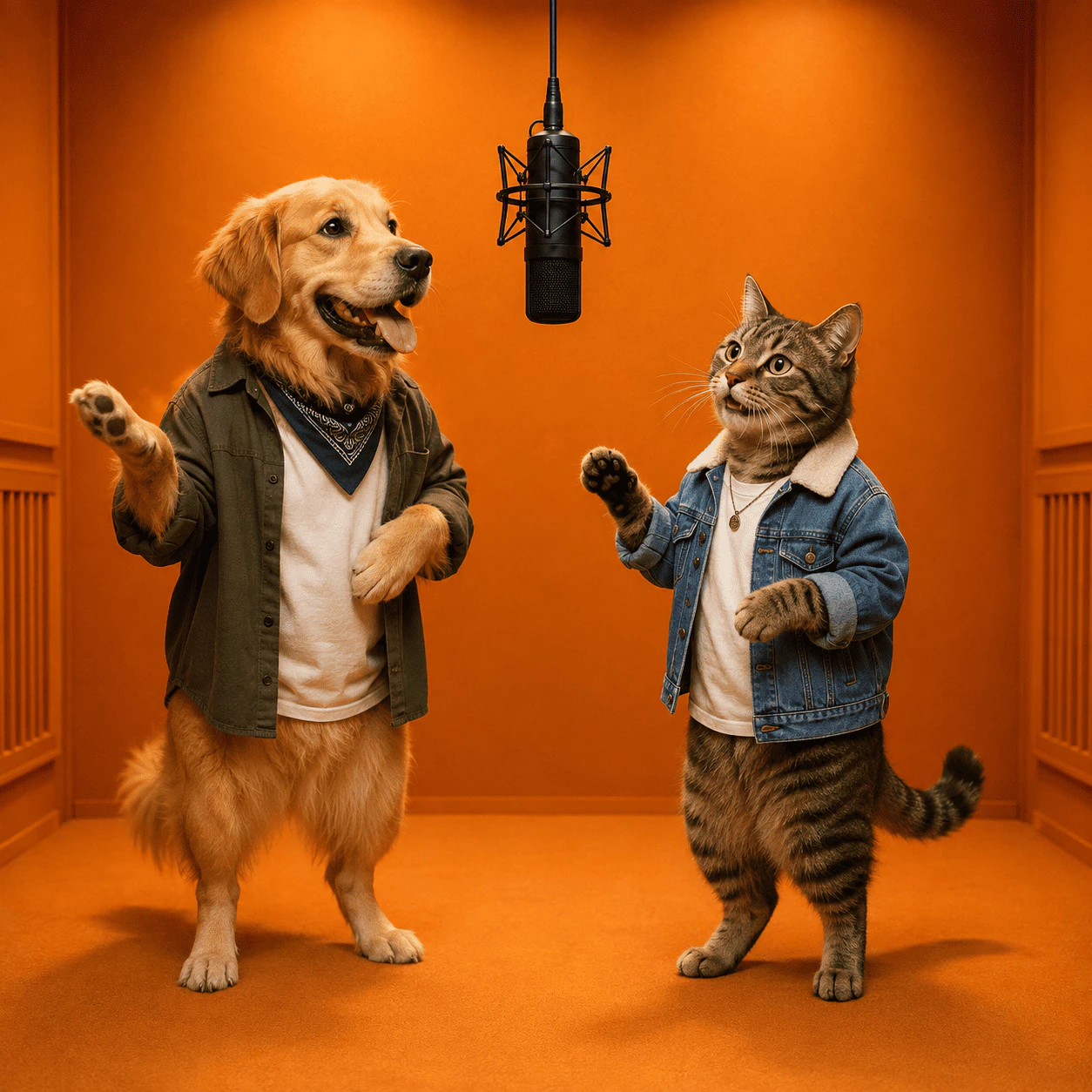
Cats, Dogs, and More
“Two pet photos became a fun booth-style clip—each animal kept its markings on its own side, with small nods and paw moves between them.”
- Match the orange studio look with a center microphone
- Stick to a locked full-body frame so fur and paws stay clear
Hotel Lobby AI – Duo Videos in a Few Steps
Hotel Lobby AI is built around image-to-video with the orange booth, center mic, and steady camera in mind.
Photo Inputs
2
Hotel Lobby AI uses one clear picture per subject so left and right stay under control.
Vertical Frame
9:16
Tall clips sized for short-form posts and stories.
Cast Options
3+
Friends, pets, and siblings setups you can try and adjust.
What People Say About Hotel Lobby AI
Short notes from folks who made orange-booth duo clips with Hotel Lobby AI and two photos.
Brian K.
Two friend portraits became a vertical duet with the mic in the middle—shared it the same day without opening an editor.
Maya L.
I run our social feed solo. Uploading two refs and a short scene note beats rebuilding the trend from scratch.
Leo P.
We tried a pet duo for a quick campaign clip—each dog kept its spot on left and right, which our audience loved.
Sofia G.
My sibling and I used separate photos; fixing one prompt line fixed the side swap we saw on the first render.
James W.
Static camera notes in the prompt kept faces steady. Our reel picked up way more replies than our old stock clips.
Hotel Lobby AI – Common Questions
Quick answers about Hotel Lobby AI and making orange-booth duo videos from two photos. Still stuck? Reach out anytime.
What is Hotel Lobby AI?
Hotel Lobby AI is a filter-style workflow that turns two reference photos into a vertical duet video. You get the familiar orange booth, a hanging microphone in the center, and two subjects who take turns while the camera stays mostly still.
Why use Hotel Lobby AI?
You skip hand-editing faces into old footage. Upload one image per person, describe the set, mic placement, turn order, and camera rules, and you can share faster.
How do I get started?
Prepare two clear photos with open faces and similar lighting. Pick left and right roles, open image-to-video, upload both references, describe the booth scene for friends, pets, or siblings, and generate with a static camera for the first pass.
What should I check before I export?
Play the full clip and look at faces, hands, feet, left-right placement, and turn timing. Compare the first and last frames so you catch drift or swapped sides before you share.
What makes this approach different?
Separate photos give you control over each side, while clear scene notes keep the booth look consistent without trapping you in one rigid style. A steady full-body frame also makes it easier to spot side swaps or face drift early.
Can I change the cast or motion?
Yes. Keep the same orange-booth setup but switch to friends, pets, or siblings, adjust who leads, or tweak small gestures. Change one instruction at a time, and only use photos you have permission to use.